Scheduling and the calendar
Set posting slots, schedule to the next free slot or a time you pick, use the day, week and month calendar, and fix posts that didn't go out.
2 min read
Unslop publishes LinkedIn posts for you, but only the ones you approve, at the time you choose. This guide covers how that works.
Set your posting slots
Posting slots are the days and times you usually want posts to go out. Set them in Settings → Posting rhythm: pick a preset like "Tue + Thu, 9:00" or add your own slots. Times are in your own time zone.
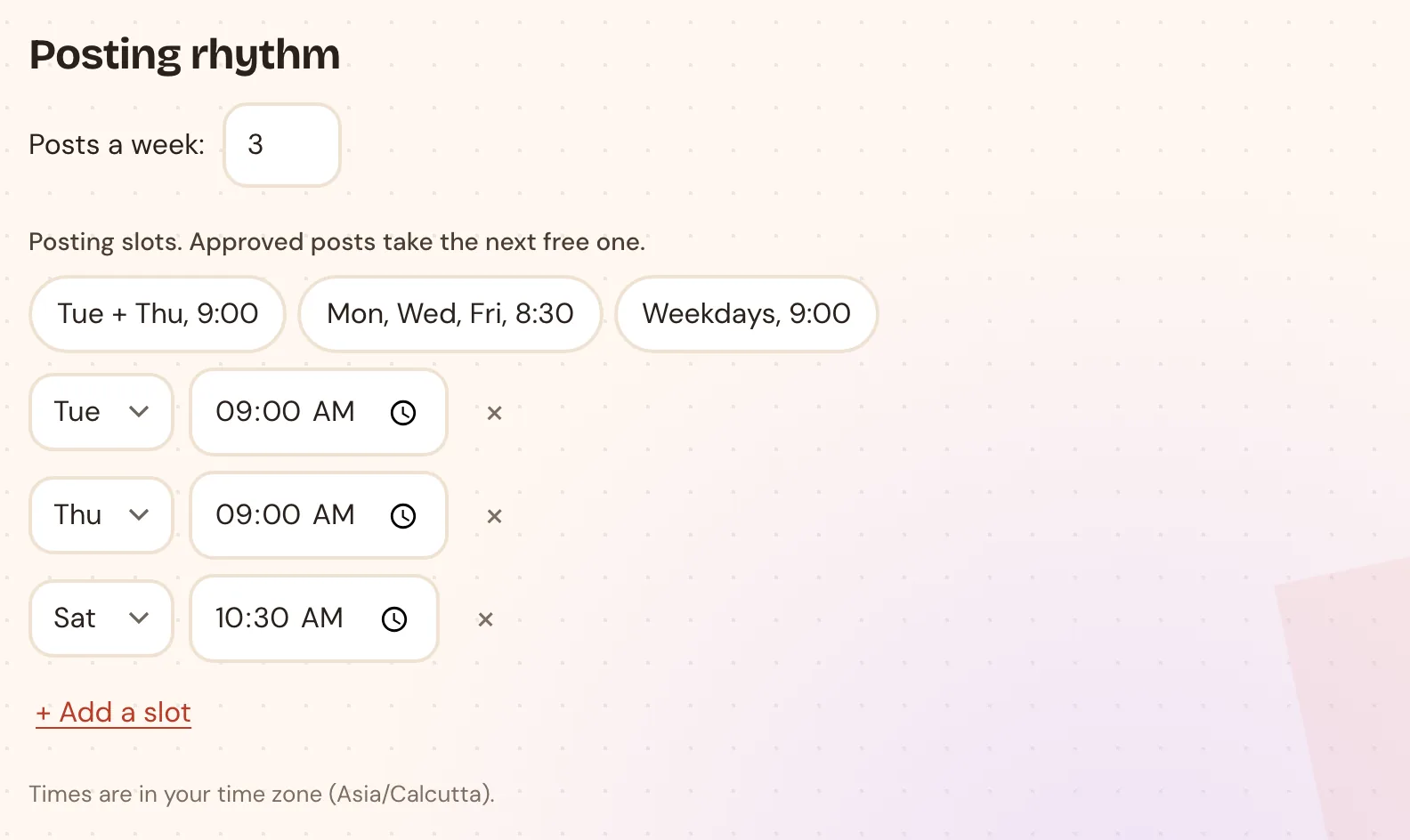
Your weekly goal (posts a week) lives here too. Home tracks it with the ring in the first tile.
Schedule a post
Open a draft and click Schedule. You get two choices:
- Next free slot: the earliest posting slot that doesn't already have a post.
- Pick a date and time: click the box to open the date picker, choose a day and time, then Schedule for this time.
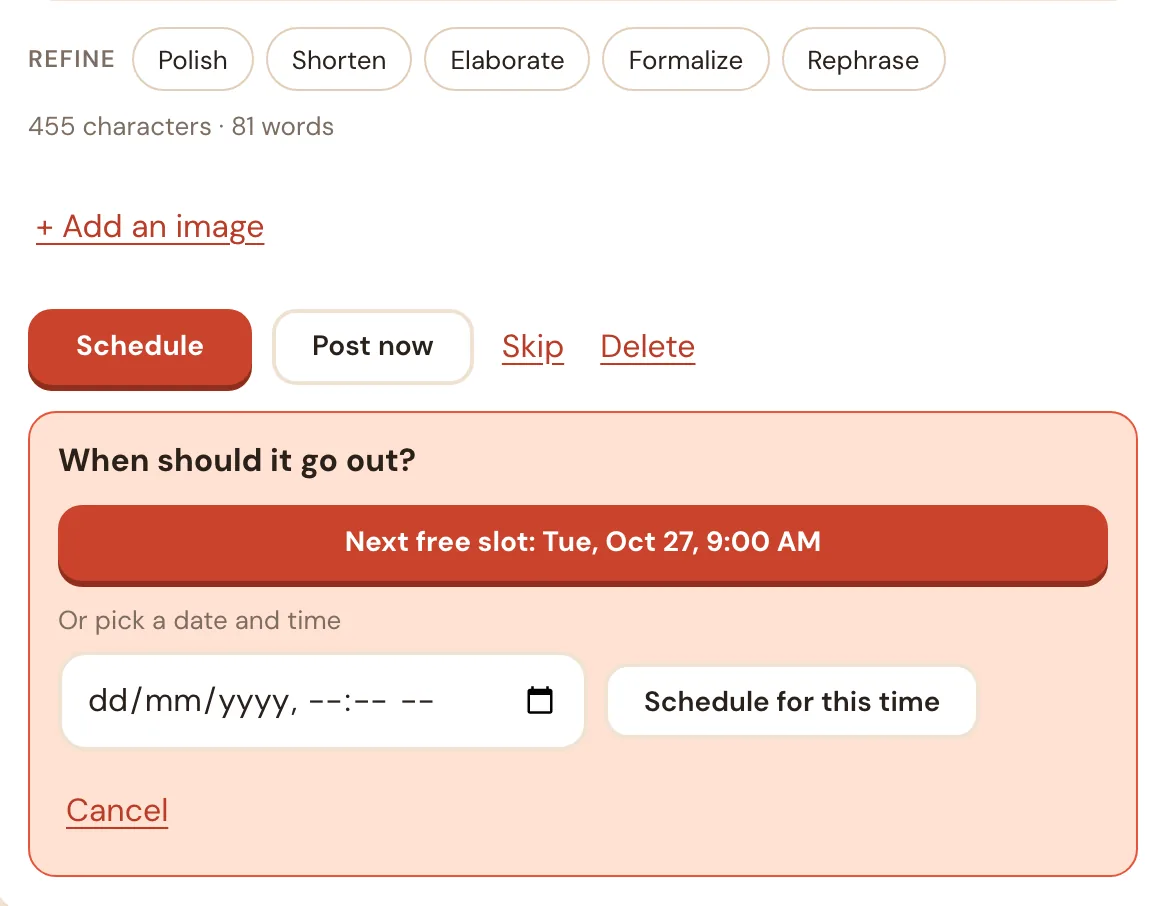
The post moves to the Queue tab and shows on your calendar. To change the time, open it from the Queue and schedule it again.
Post now publishes straight away after you confirm. Skip and Delete both move a post to the Bin, where you can restore it or delete it forever.
The calendar
Home has a calendar that works like Google Calendar.
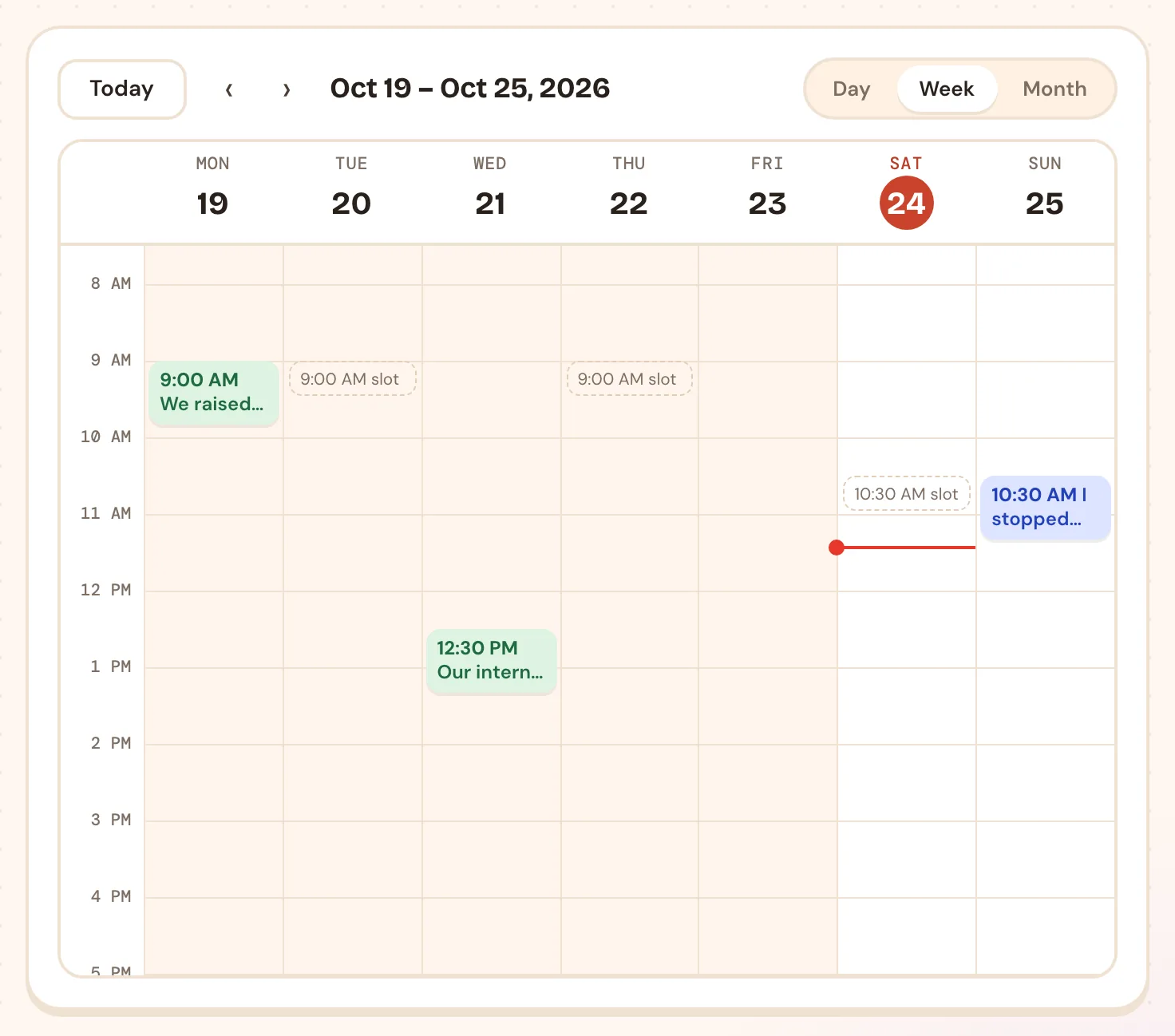
- Day, Week, Month at the top right switch views. Today and the arrows move around.
- Green posts went out. Blue posts are scheduled. Coral posts didn't go out.
- Dashed slots are your posting slots from Settings.
- The red line is the current time.
- On a phone it opens on the day view.
Plan from the calendar
Click any empty time to plan a post for it:
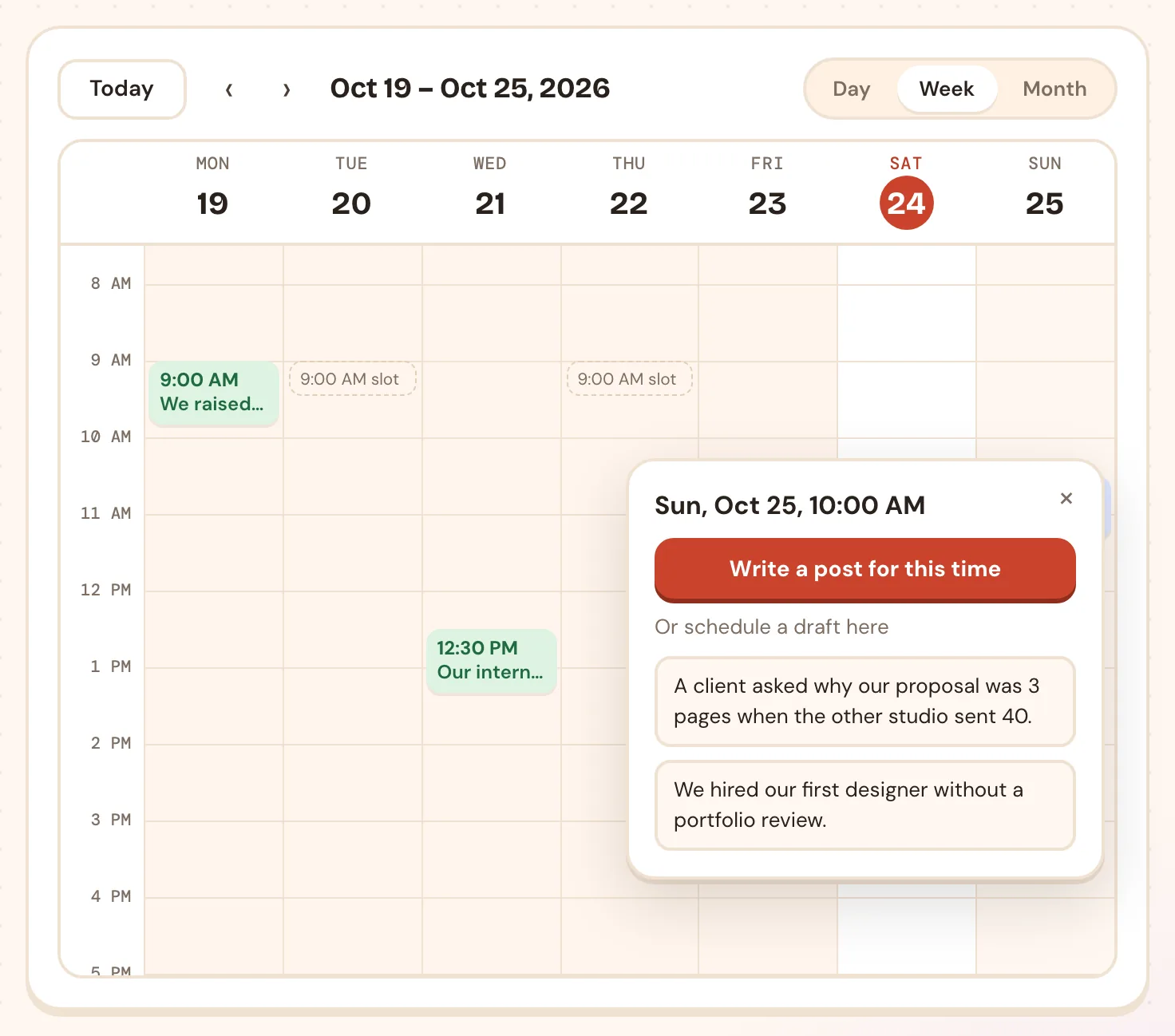
- Write a post for this time opens the writer with that time filled in for when you schedule.
- Or schedule a draft here puts one of your drafts at that time in one click.
On a computer you can also drag a scheduled post to another time to move it. Click any post to see its text and open it in Posts.
Who sees your posts
In Settings → LinkedIn choose Connections only or Anyone on LinkedIn. New accounts start on connections only, so your first posts stay small while you get comfortable.
When a post doesn't go out
If LinkedIn rejects a post, it moves to the Failed tab with the reason, and Home shows a notice. The usual causes:
- Your LinkedIn connection expired. LinkedIn connections last about 60 days. Unslop warns you 5 days before; reconnect from Settings with one click.
- LinkedIn was down or rejected the image. Open the post and click Retry now.
Fix the cause, then retry or schedule it again. Nothing is lost.
Rather see it with your own notes?
Book a short call and we'll turn something from your week into a post together.
Book a demo