Comments and AI images
Hit a daily comment goal with three suggestions per post, and plan, generate and edit cards and carousels with Design with AI.
3 min read
Posting is half of being seen. The other half is showing up in other people's comments, and a good image helps your own posts stop the scroll. This guide covers both.
Comments
Set a daily goal
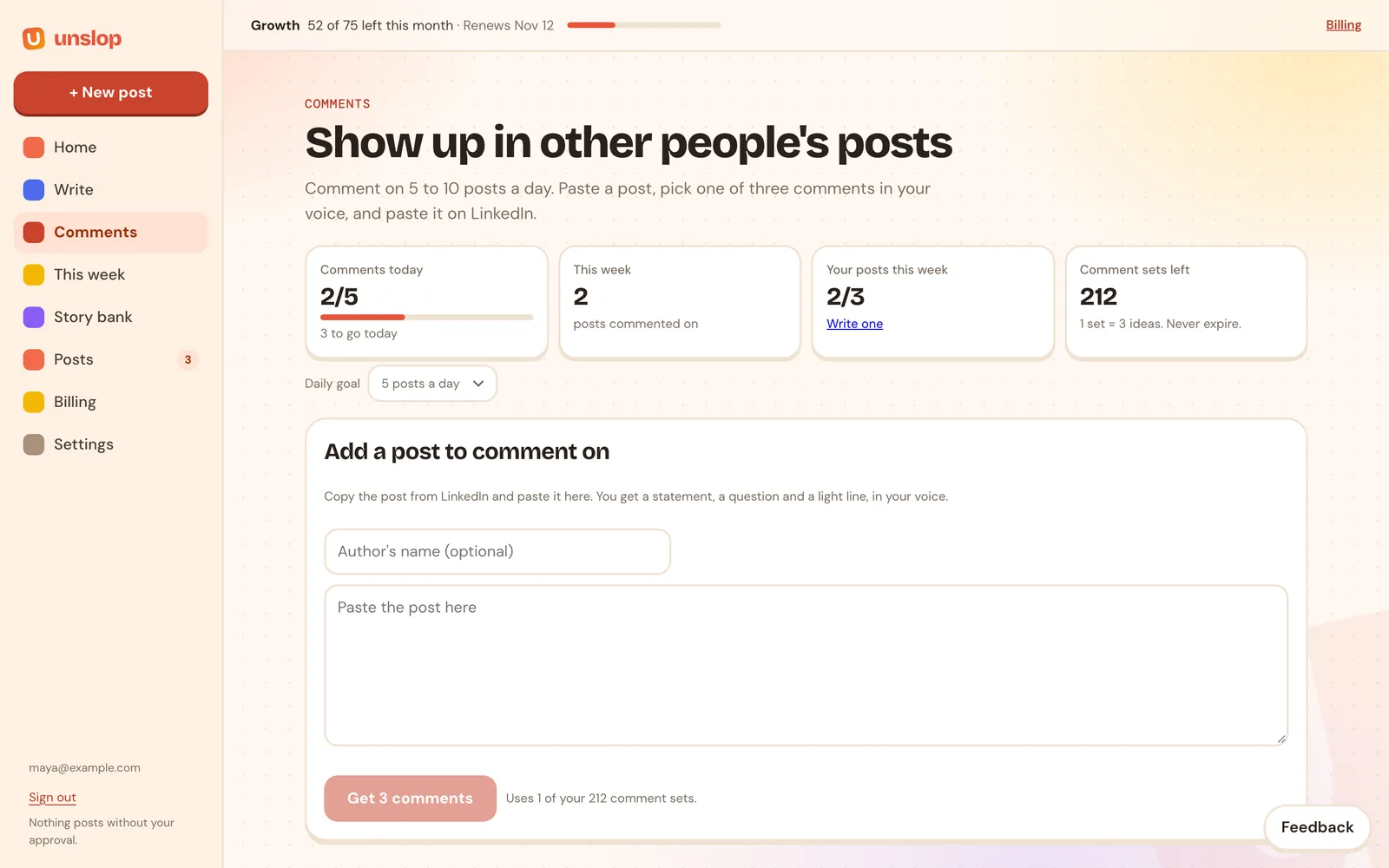
Open Comments and pick a daily goal (5 to 10 posts a day works well). The tiles at the top track comments today, posts you commented on this week and your own posts this week.
Get three comments for any post
- Copy a post from LinkedIn and paste it into Add a post to comment on. Adding the author's name is optional.
- Click Get 3 comments. You get three options in your style:
- a statement that adds something from your own experience,
- a question that keeps the conversation going,
- a light line for when a bit of humor fits.
- Edit if you want, click Copy, and paste it on LinkedIn.
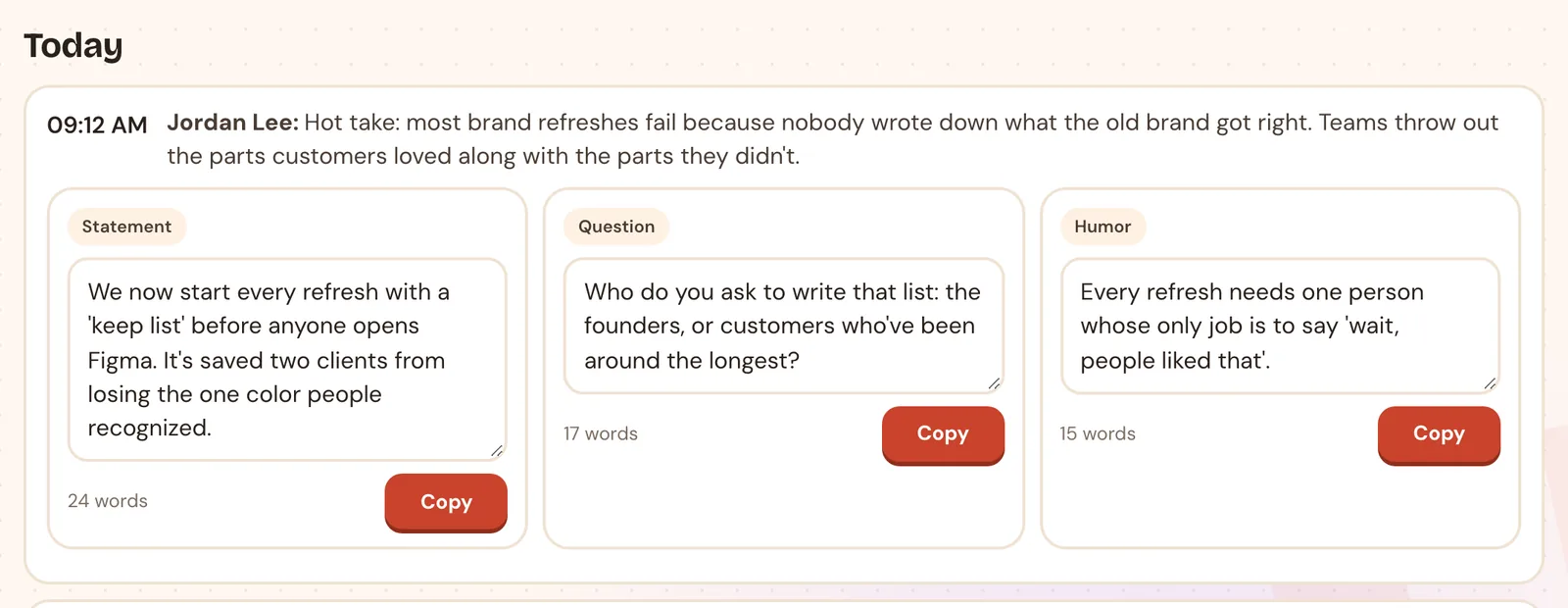
Each post you get comments for uses one comment set. Try 3 more gives you fresh options and uses another set. Today's sets stay on the page, so you can come back to them.
Unslop never comments for you. You choose, copy and paste, so every comment is yours.
AI images
Add an image to a post
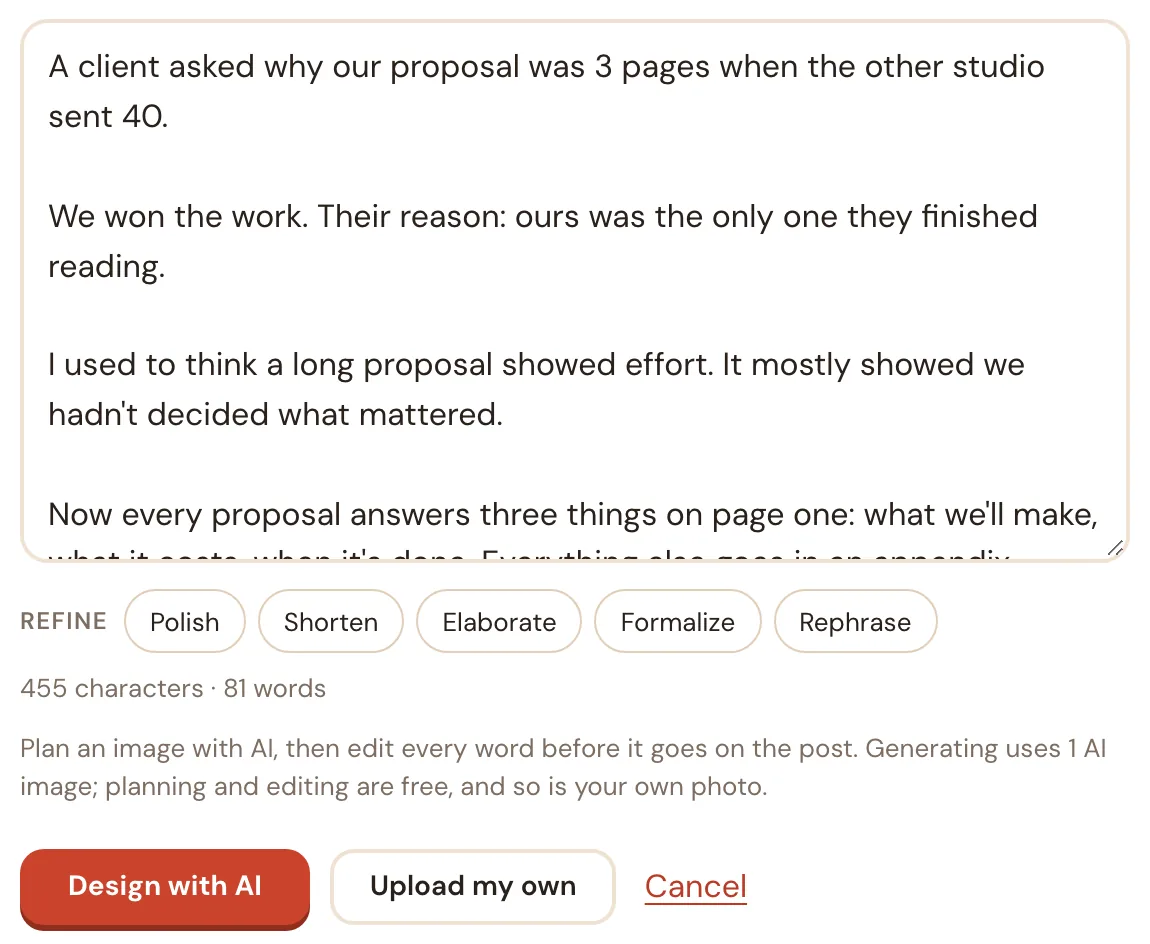
Open a draft and click + Add an image. You can:
- Upload my own: use your own photo. Always free.
- Design with AI: plan a card or carousel with AI, then edit it.
Plan it with AI first
Design with AI opens a panel with two tabs.
Plan with AI reads your post and suggests a few concepts: a single card or a carousel, what goes on each slide, and why it fits.
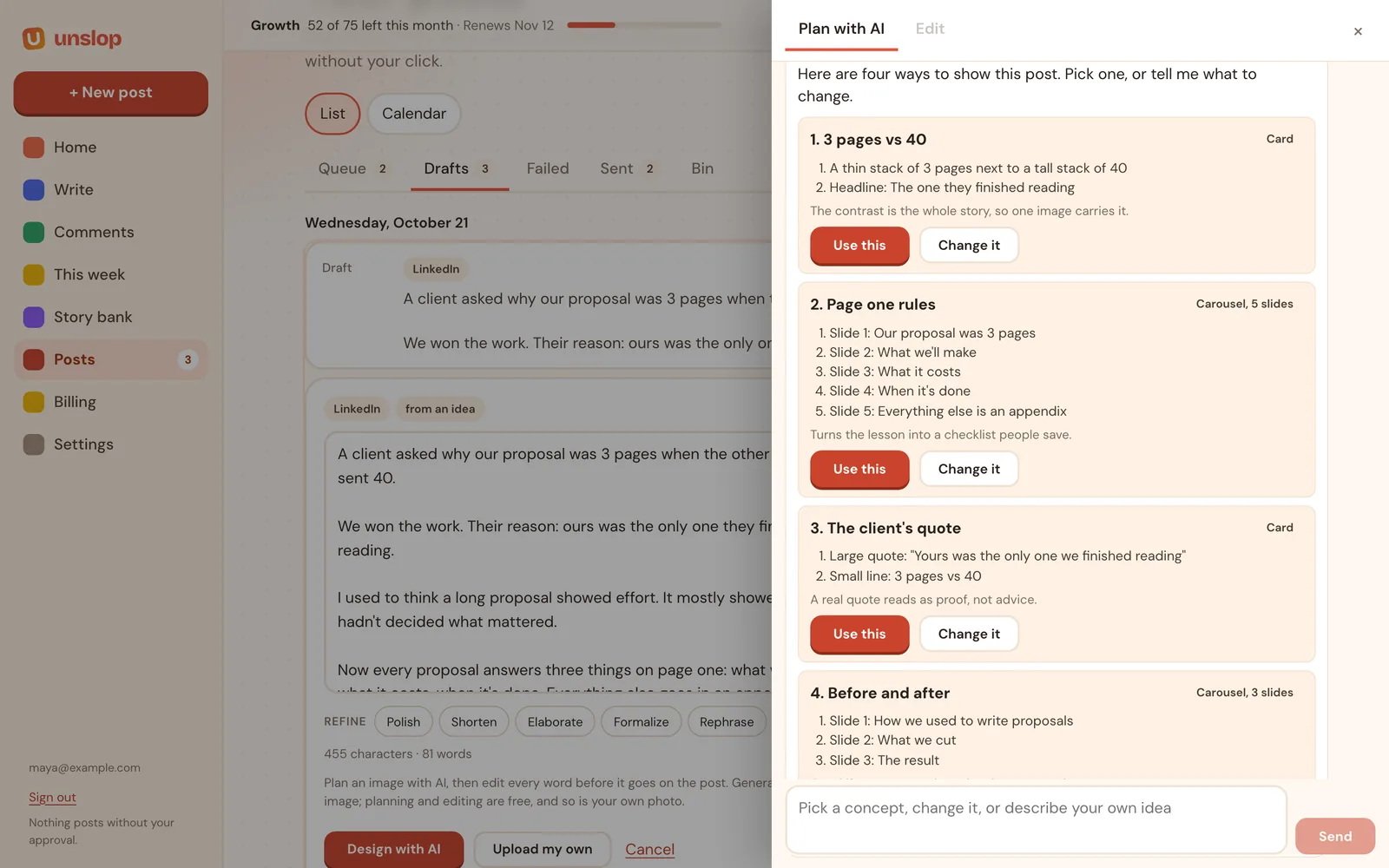
- Use this picks a concept.
- Change it lets you adjust one before you commit.
- Or type your own idea in the box.
The AI may ask a couple of questions, then writes a short brief. Click Generate when the brief is right. Generating uses one AI image from your balance. Planning and chatting are free, up to 15 messages per post.
Edit lets you change every element of the result: the words on each slide, each slide's color theme (dark, light or accent), and add, copy or remove slides. Editing is free, so fix a typo without generating again.
Make it look like you
Set your colors, fonts, name and handle once in Settings → Card look. Every card and carousel uses them.
Other channels
For X, Threads and Substack Notes, you can download the image or carousel and attach it when you paste the post in.
Comment sets and AI images
Every account starts with 5 comment sets and 2 AI images to try. After that, they're add-ons you buy in any amount, separately from your plan, and they never expire:
- Comment sets: 300 for $4.99, or 100 for $1.99.
- AI images: 50 for $4.99, or 15 for $1.99.
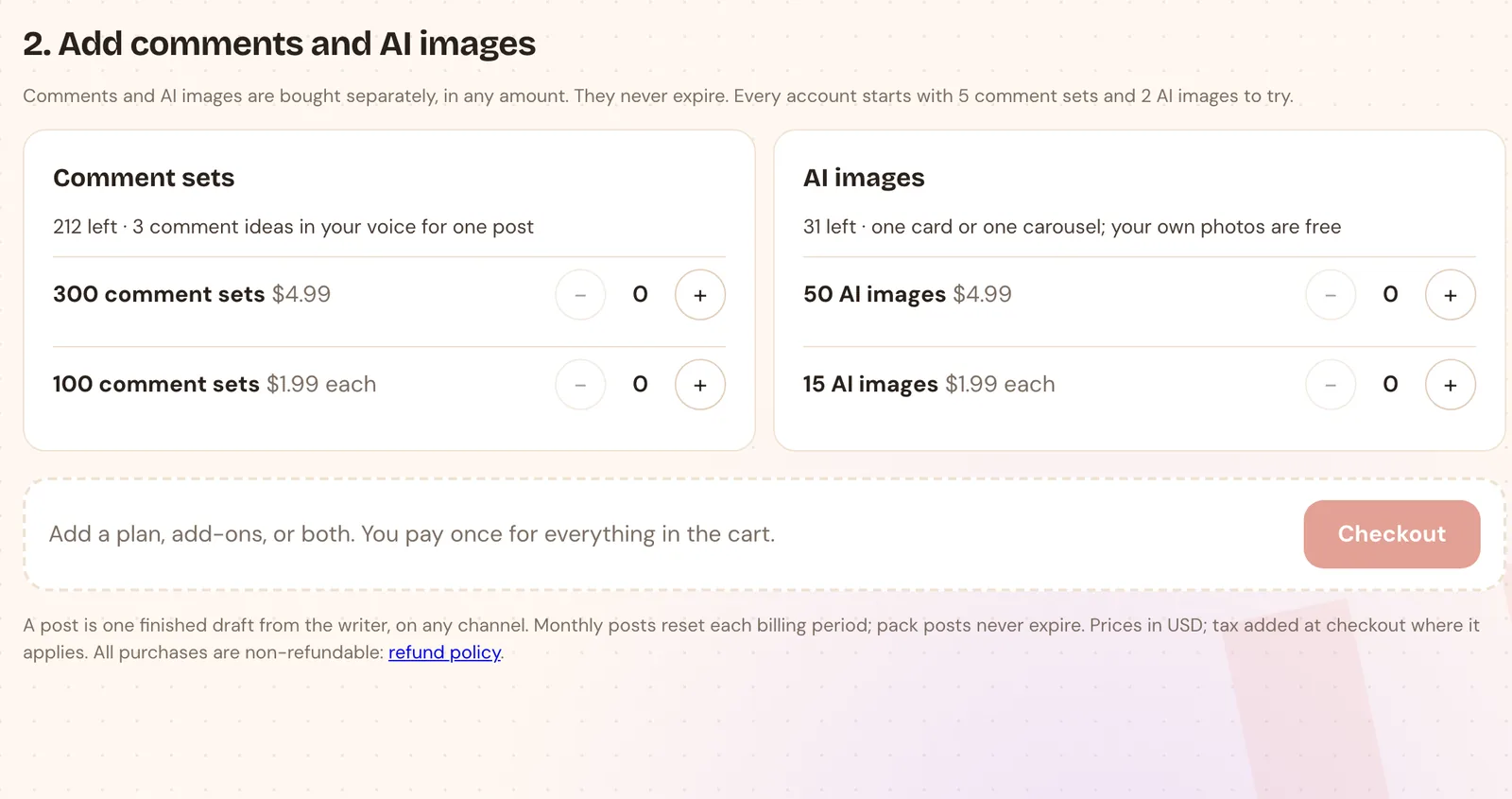
Buy them on Billing, together with a plan or on their own. When you run out, Unslop shows a top-up box right where you are, so you never lose your place. See Pricing for plans.
Rather see it with your own notes?
Book a short call and we'll turn something from your week into a post together.
Book a demo